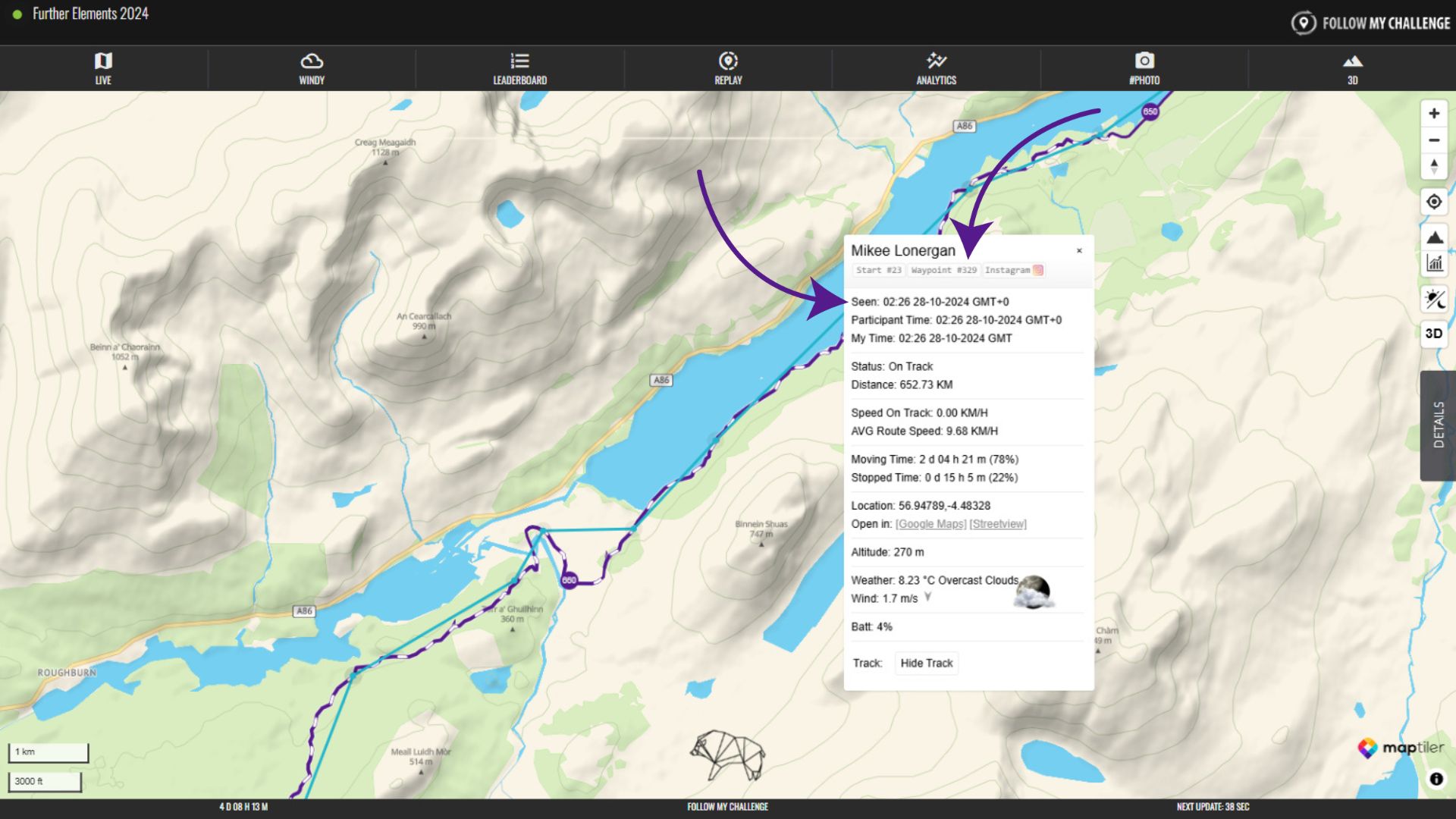
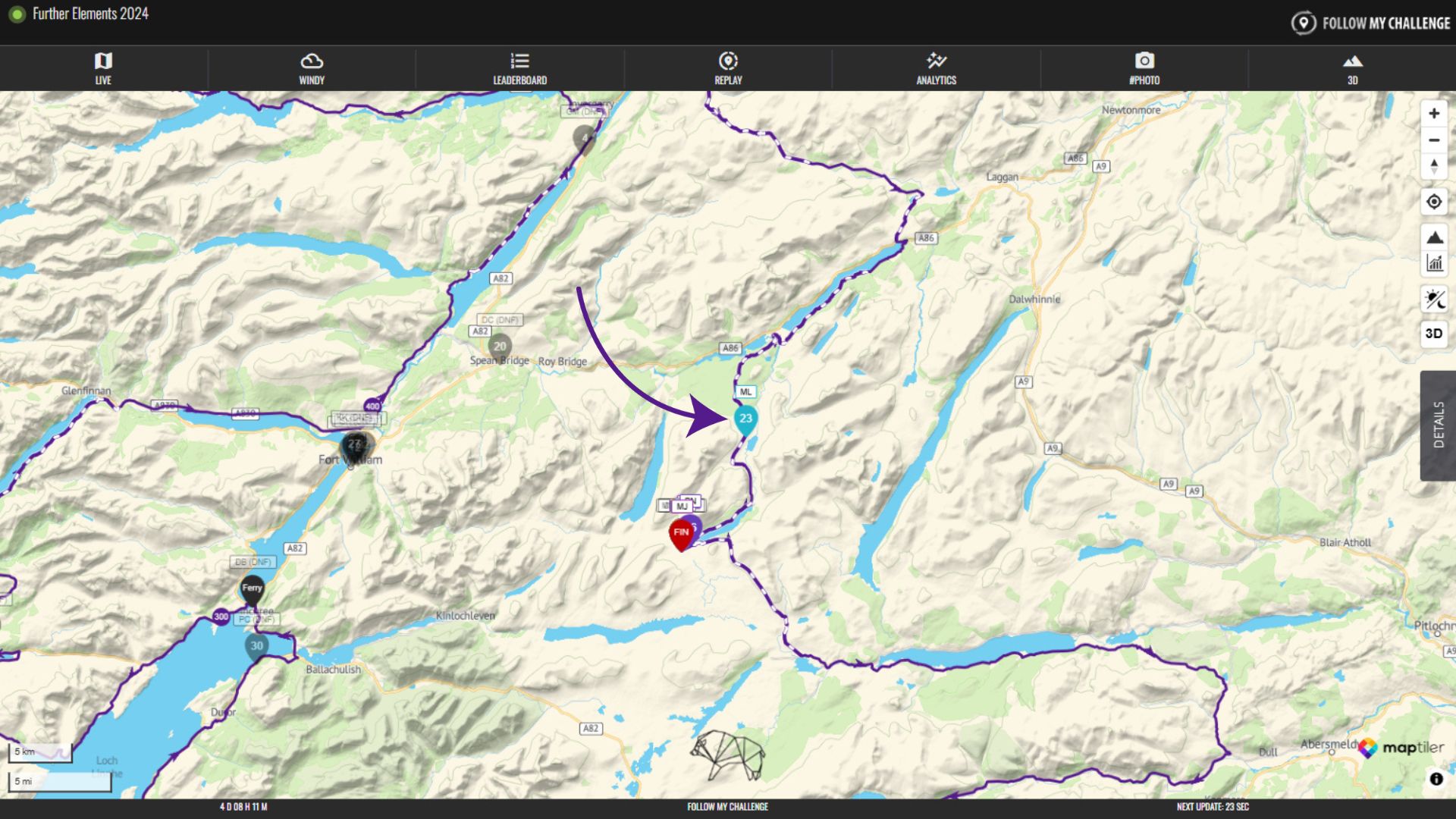
To display more information about a participant, simply click on their dot, which will open a pop-up.
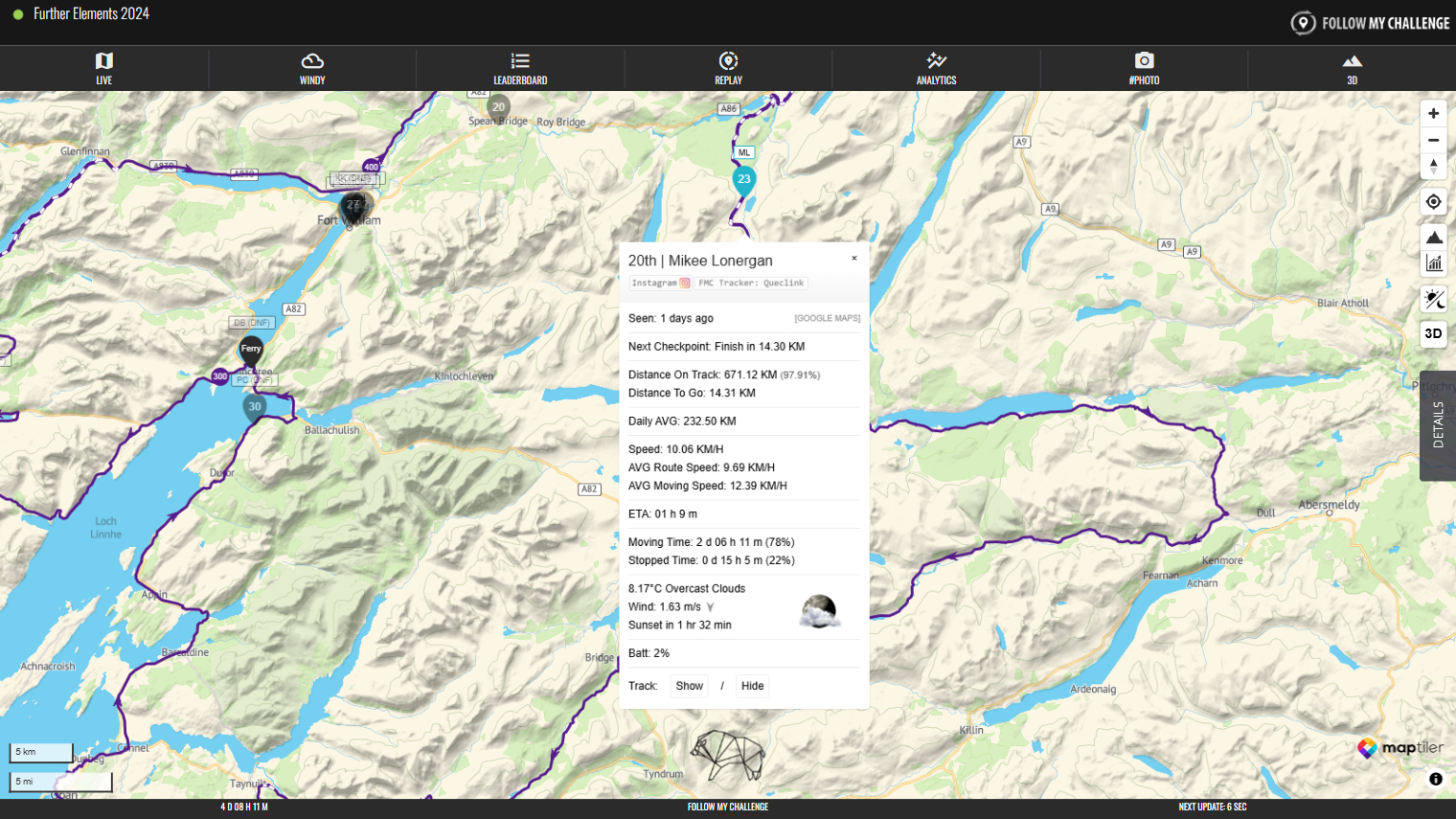
Within this pop-up, you will find a range of statistics relating to their progress so far. The pop-up gives you the option to open their location in Google Maps.
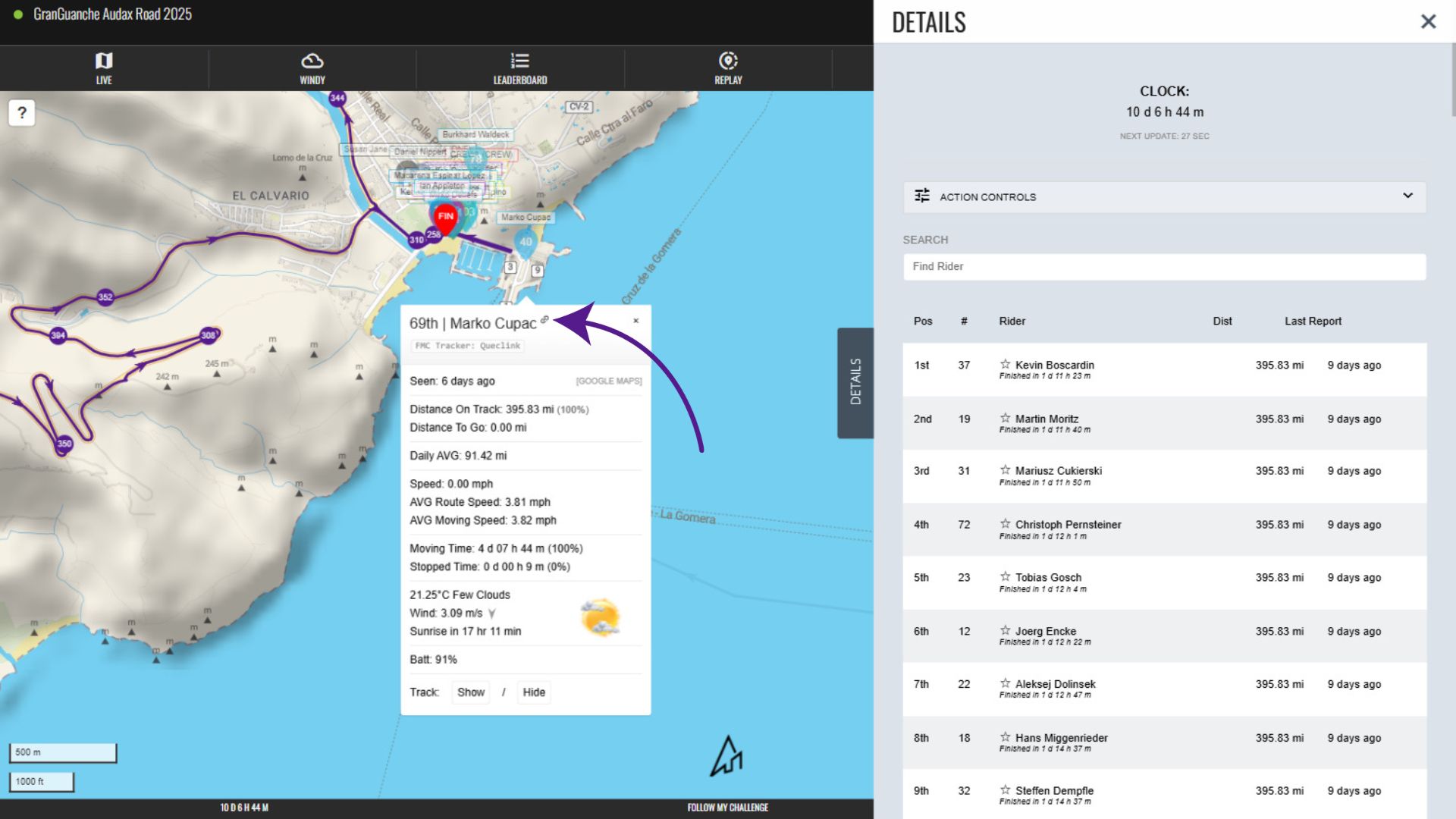
Link to Participant
If you want to link directly to a participant on a map, click the link icon by their name in their pop-up. This will copy a unique URL to your clipboard, which you can paste elsewhere to save or share. Opening this URL will centre the map on that participant automatically.
Display Participant’s Track
At the bottom of the participant’s pop-up is the option to display their track. To do this, simply click “show”.
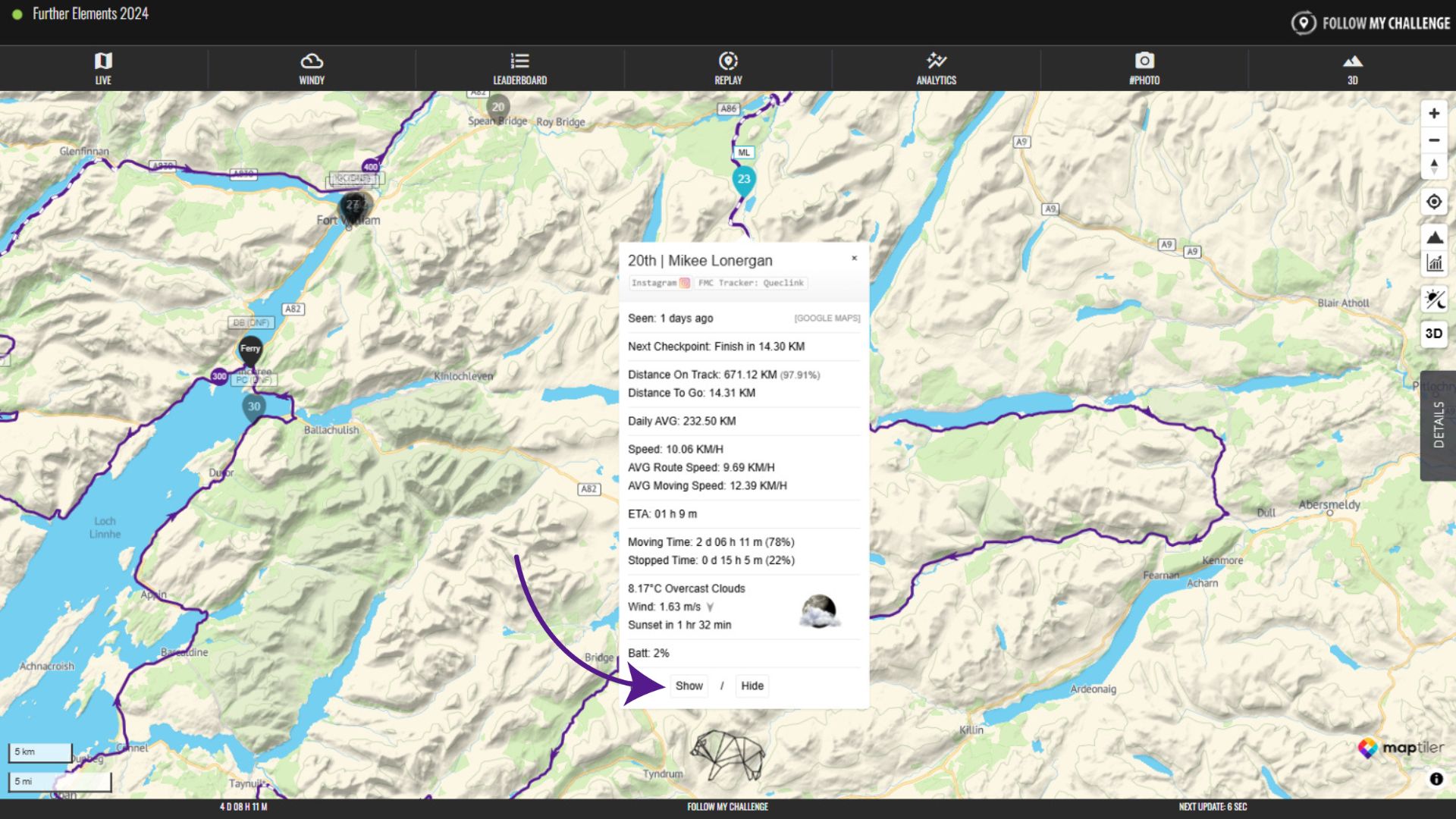
This track overlays every point their tracker has transmitted so far onto the map, joining them with straight lines.
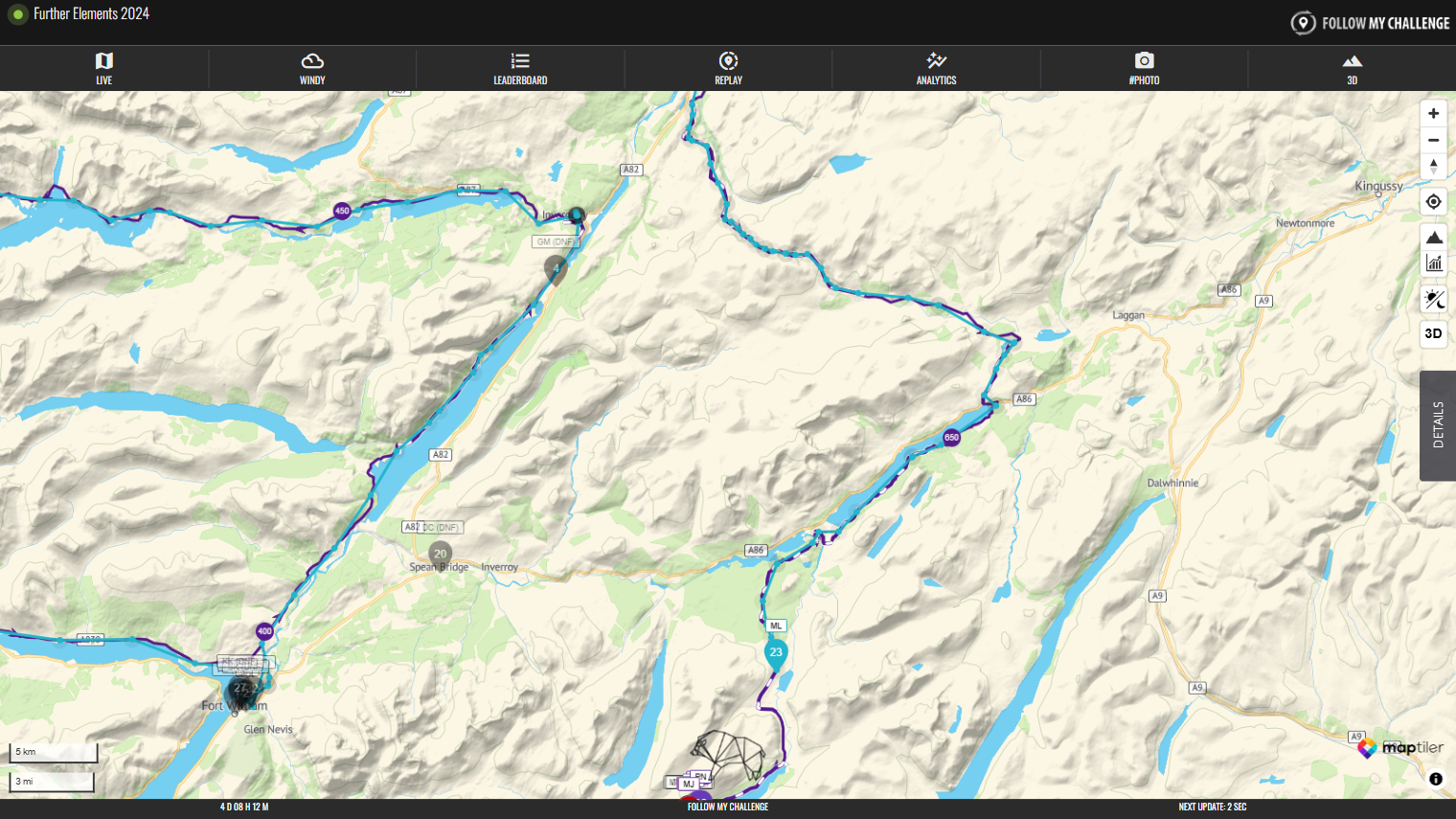
Examine Track History
You can examine each track point in detail by clicking or tapping on it. This will bring up the track point pop-up.
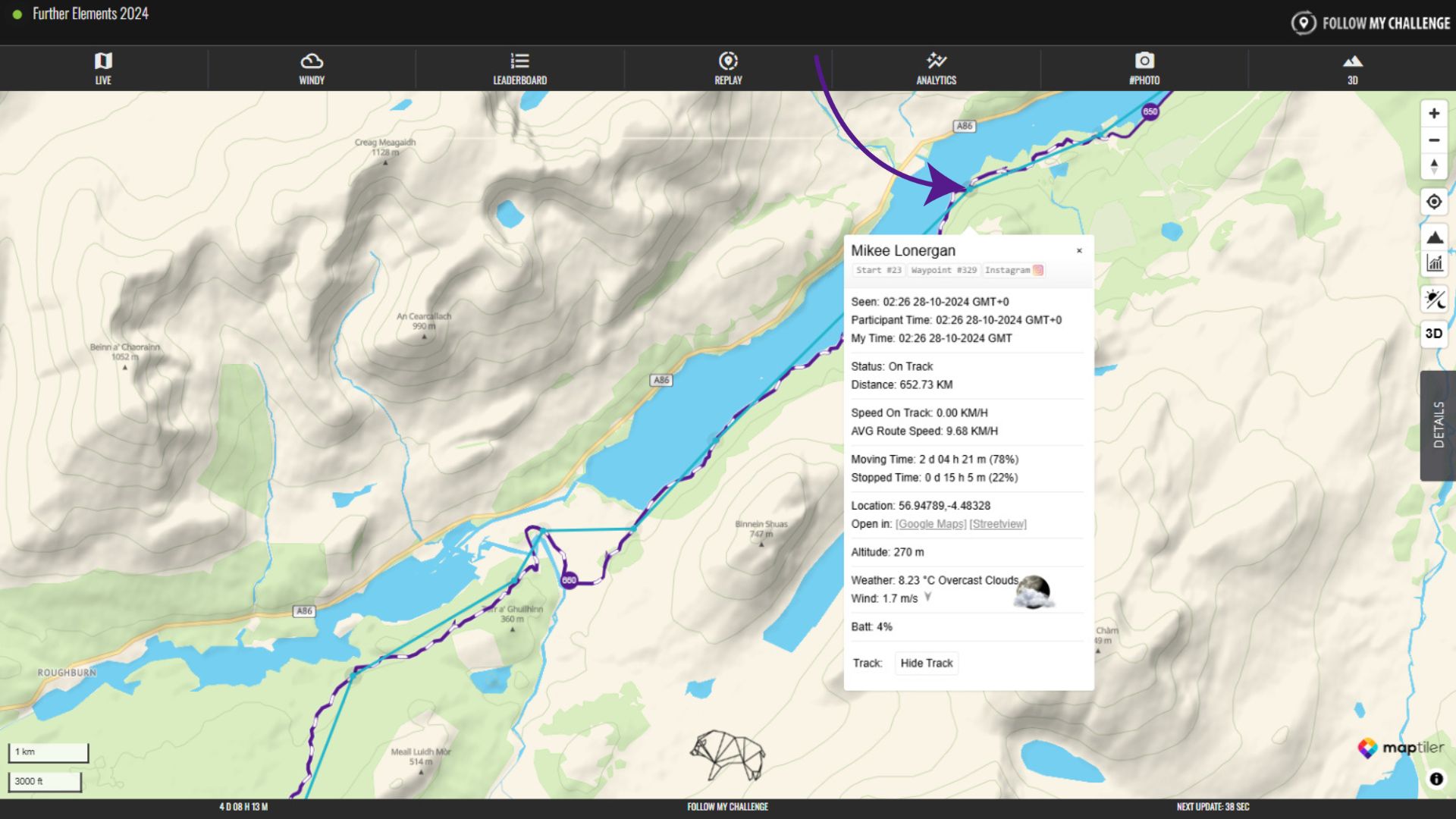
This pop-up provides a snapshot of the participant’s progress at a specific point in time. Each point is numbered sequentially (visibly just below the name) and the “seen” time corresponds to when it was recorded.
The data fields below match the fields displayed in the participant pop-up and they effectively show what you would have seen if you had opened the participant pop-up at that specific time.