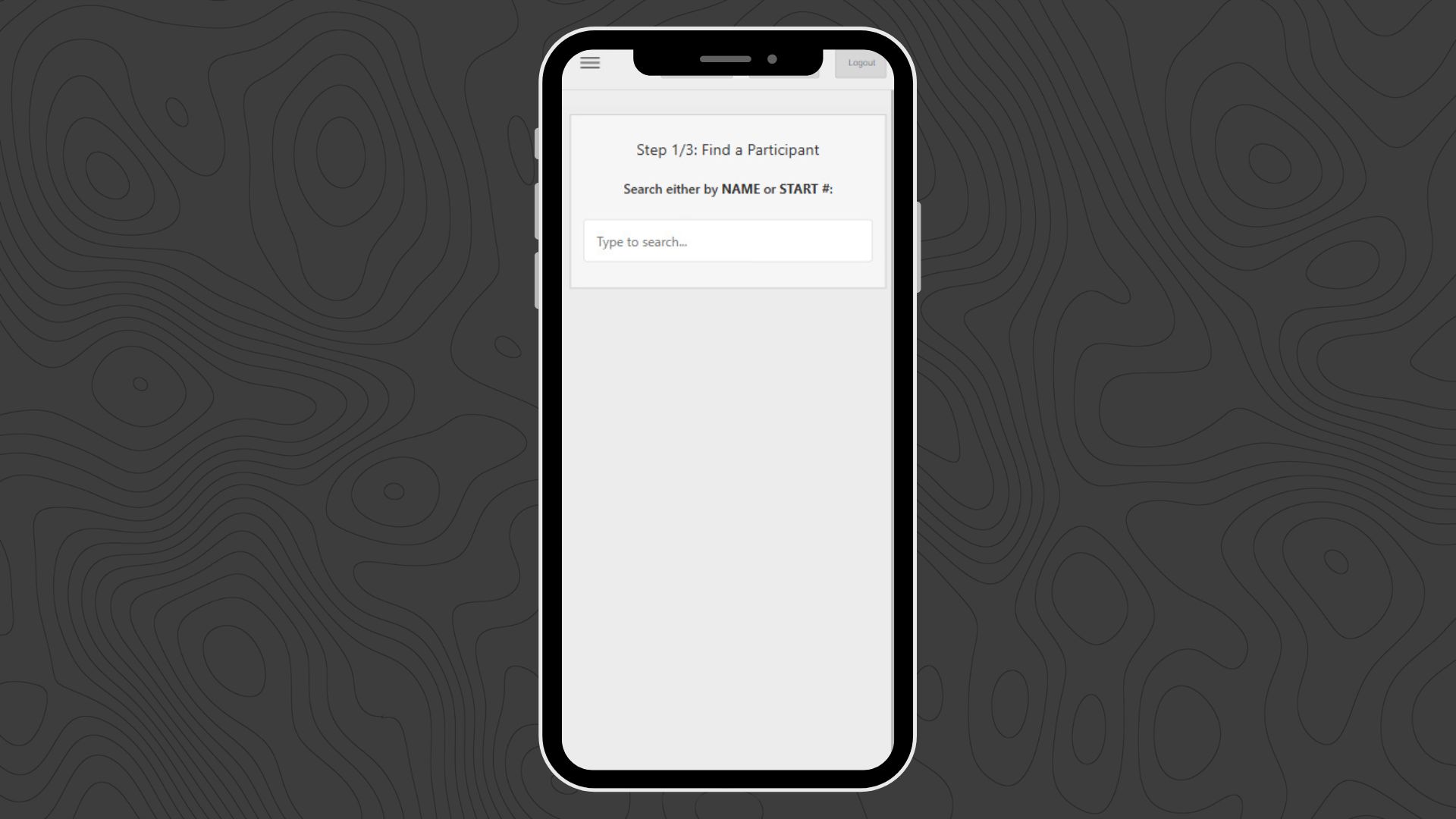
The Participants tab serves as dashboard to apply changes to the trackers assigned to this map. It is laid out so that each row corresponds to a unique device ID.
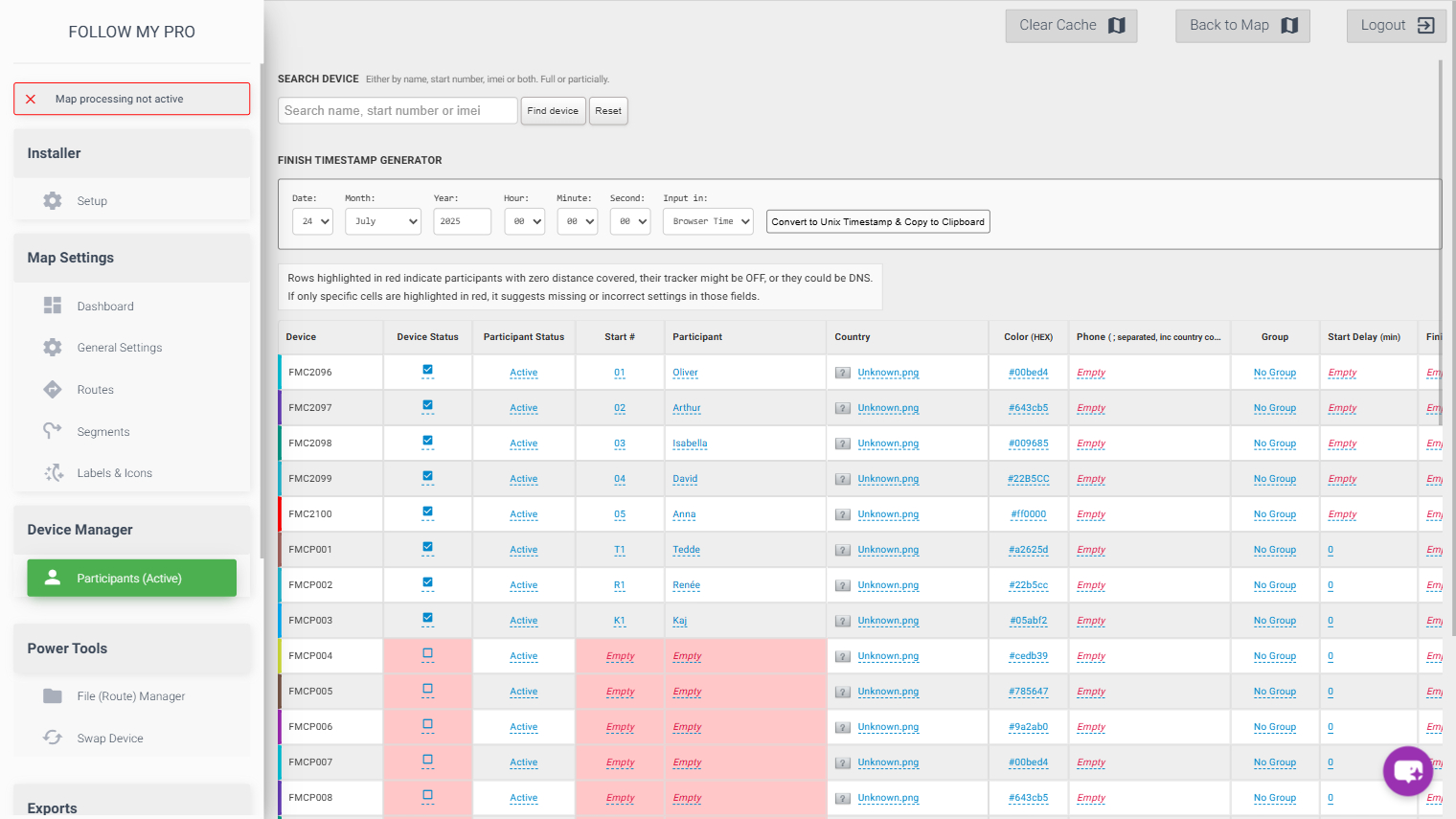
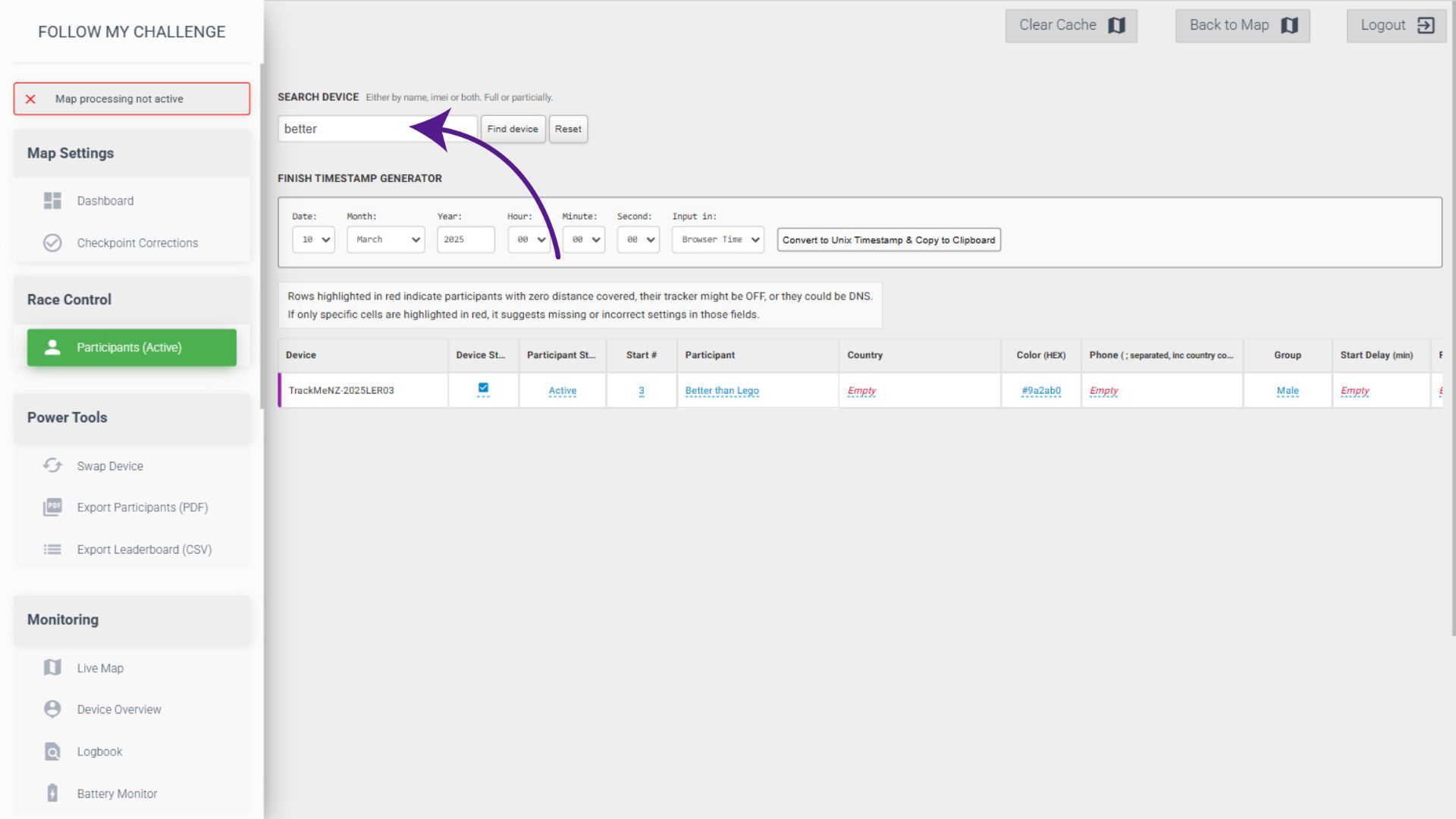
Search Device
To find a specific tracker (or the participant assigned to it), search using the box at the top of the page. You can search using either the tracker ID or the participant’s name, with all matching results shown below. To reset the tab, simply click the “Reset” button.
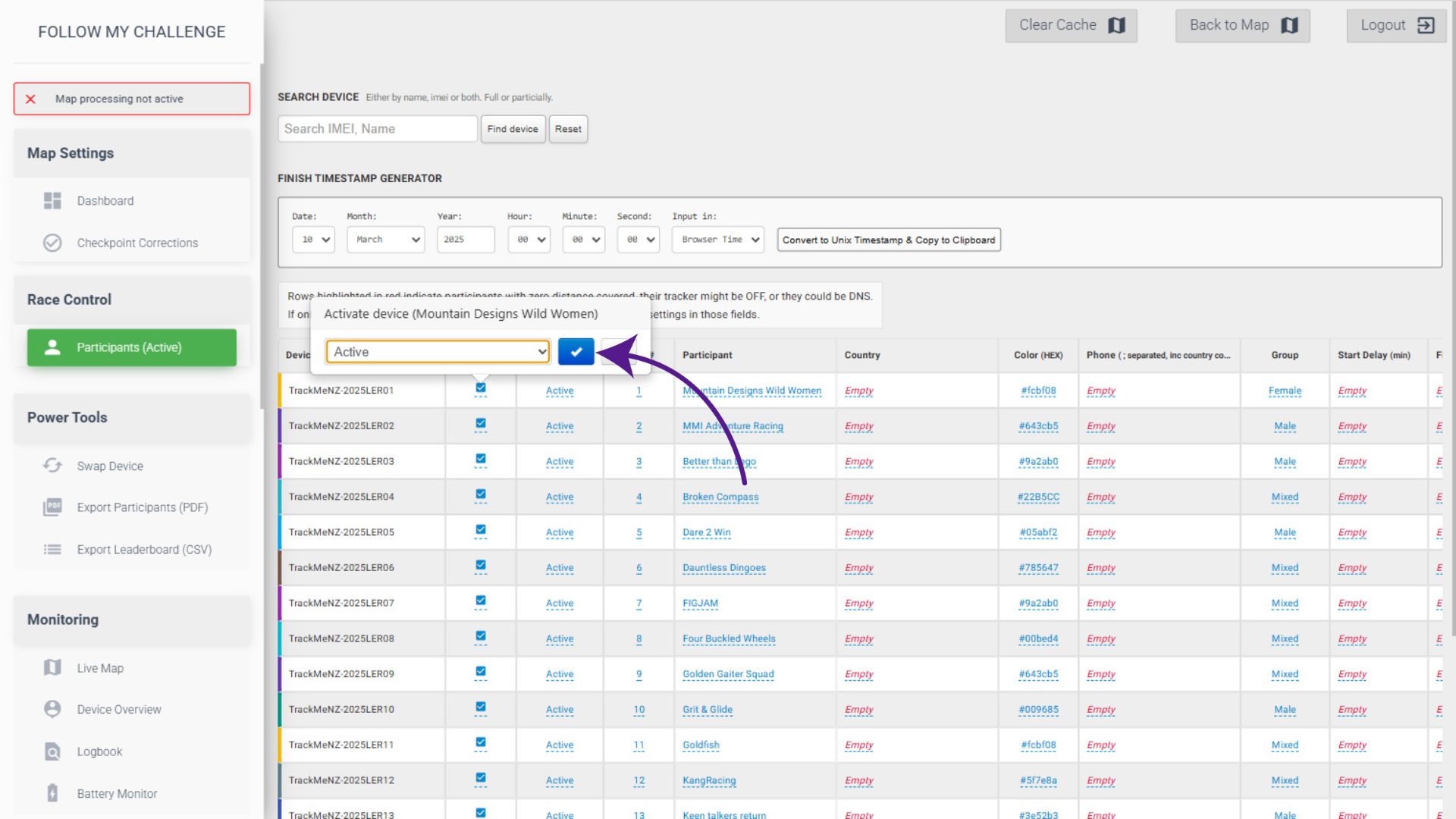
Device Status
The Device Status column controls whether a tracker is displayed on the map or not. When set to “inactive”, the device will be removed from the map, as well as all data associated with it. This effectively removes the participant from the map as well, unless a replacement device has been assigned to them. You set the status by clicking on the checkbox and then selecting the active/inactive.
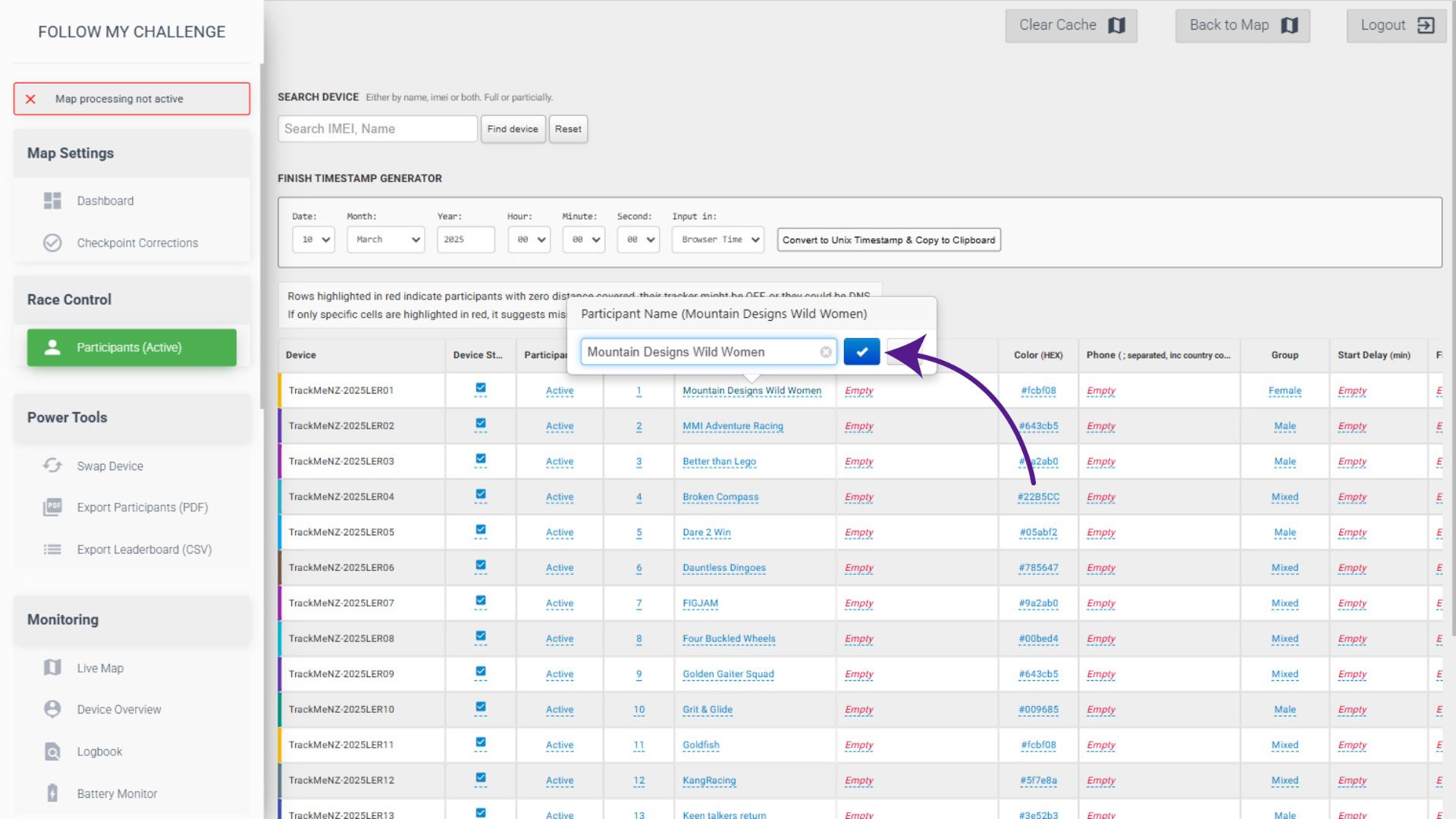
Change Name or Number
To change a participant’s name or number, simply click on the cell and edit the contents, clicking the tick to save.
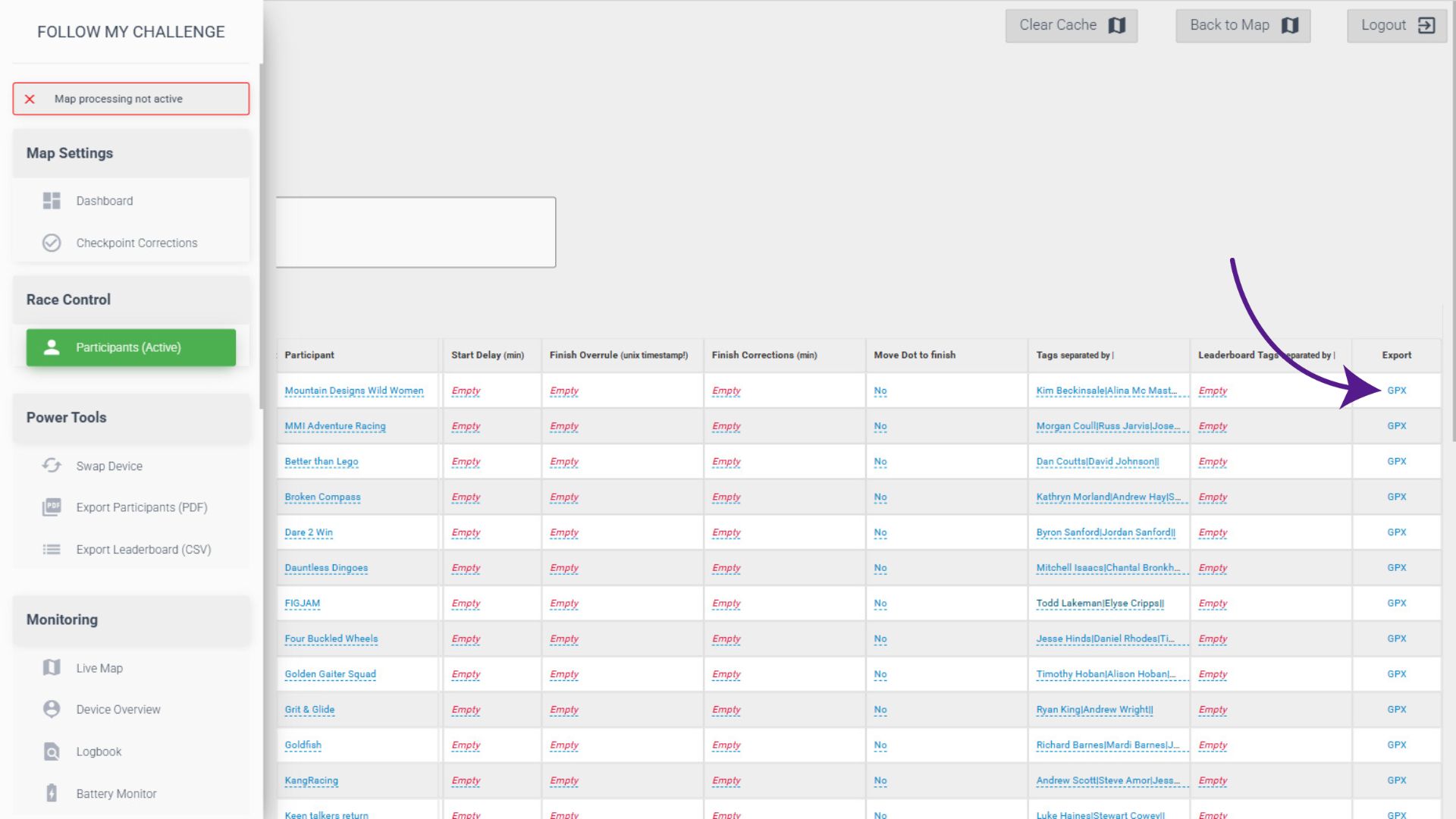
Export GPX
The Export GPX function allows you to download a GPX file from that participant’s tracker. Click the link to trigger the download.
Mobile View
When you access the manager from a mobile phone, you will automatically be redirected to the Participants tab and it will display in mobile mode, which is optimised for a smaller portrait screen.
This mode replaces the table with a form, allowing you to quickly search for participants and then select the field you would like to enter. All the fields remain the same and function in the same way.