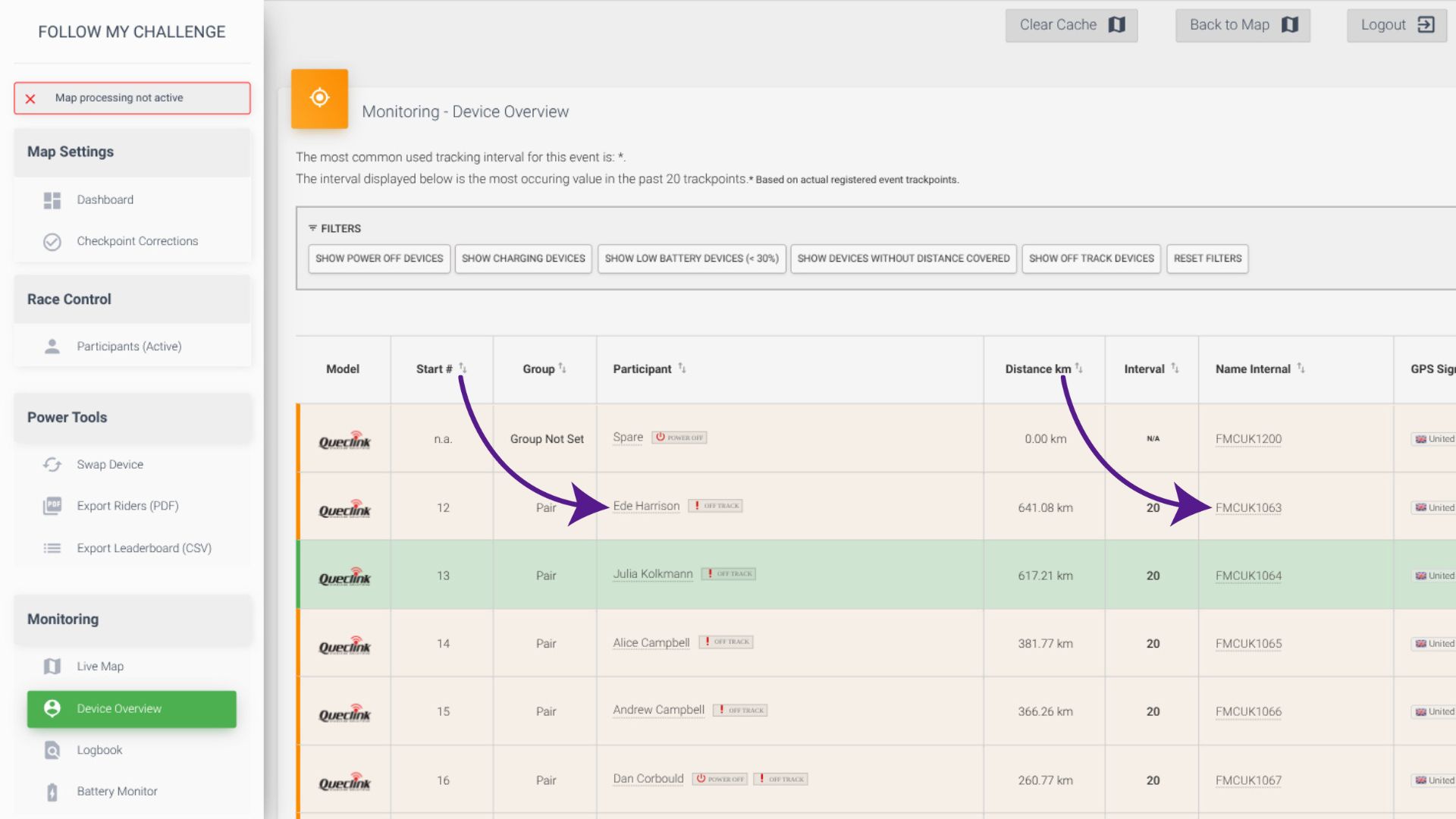
The Device Overview tab displays all the trackers assigned to the map, accompanied by a list of fields populated with the latest data from each tracker. This section is ideal for monitoring devices before the start of an event and during it. The device rows are colour coded by when the device was last seen, with devices in green seen most recently.
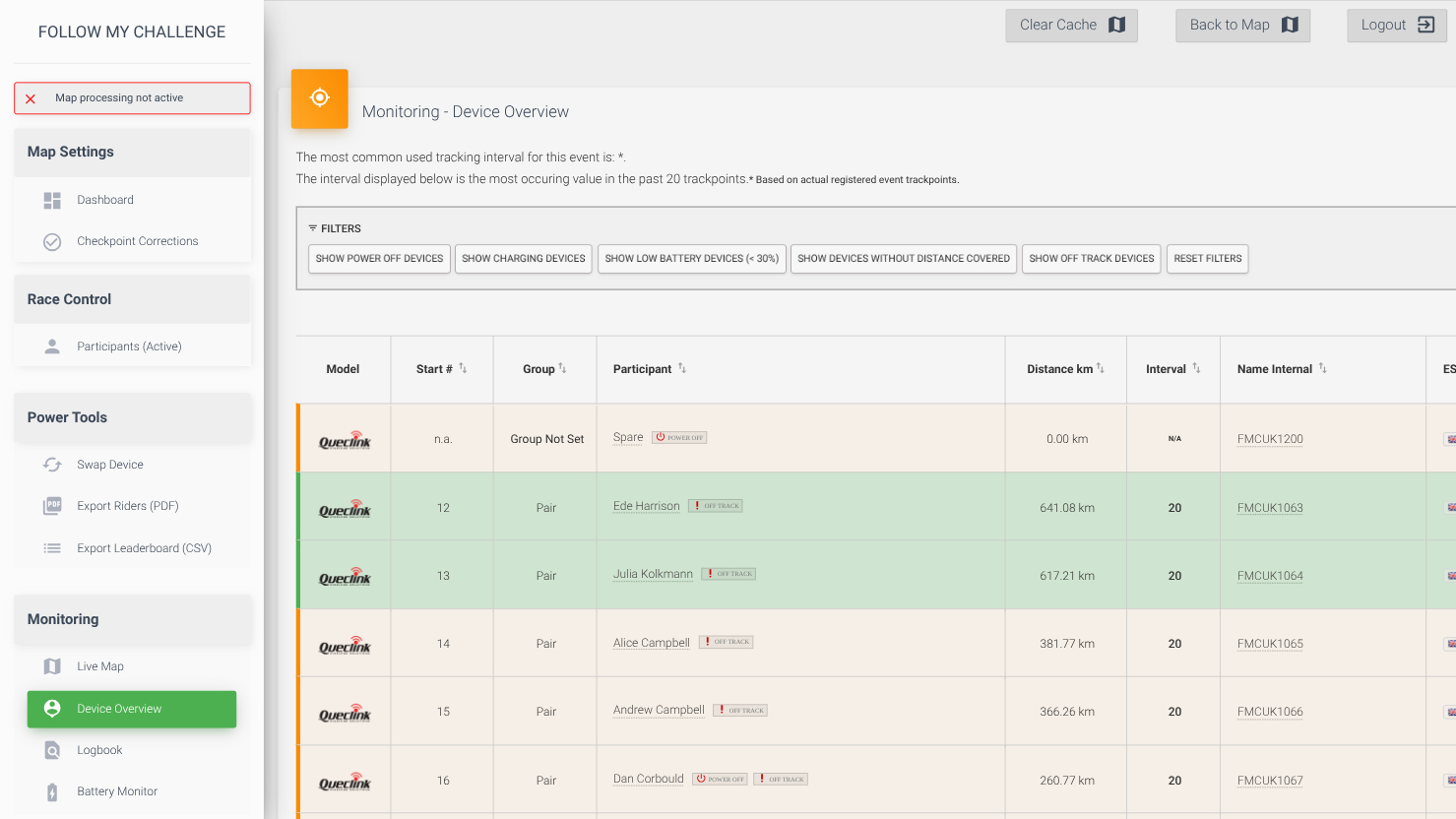
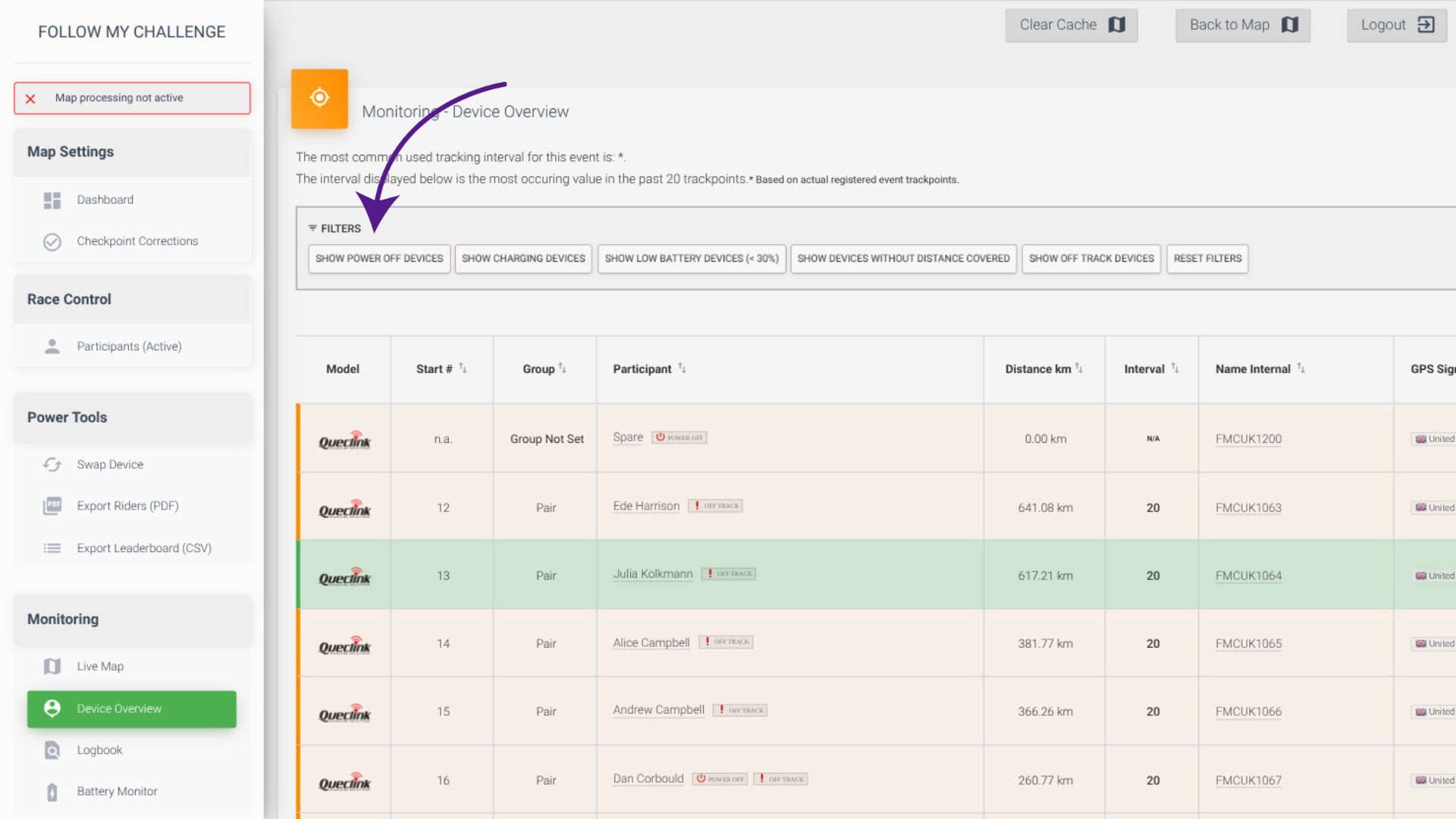
Filters
At the top of the page are an array of filters that allow you to hone in on devices that may have issues, such as those that have low battery or that are switched off. To activate a filter, just click that button. To display all devices, click “Reset Filters”.
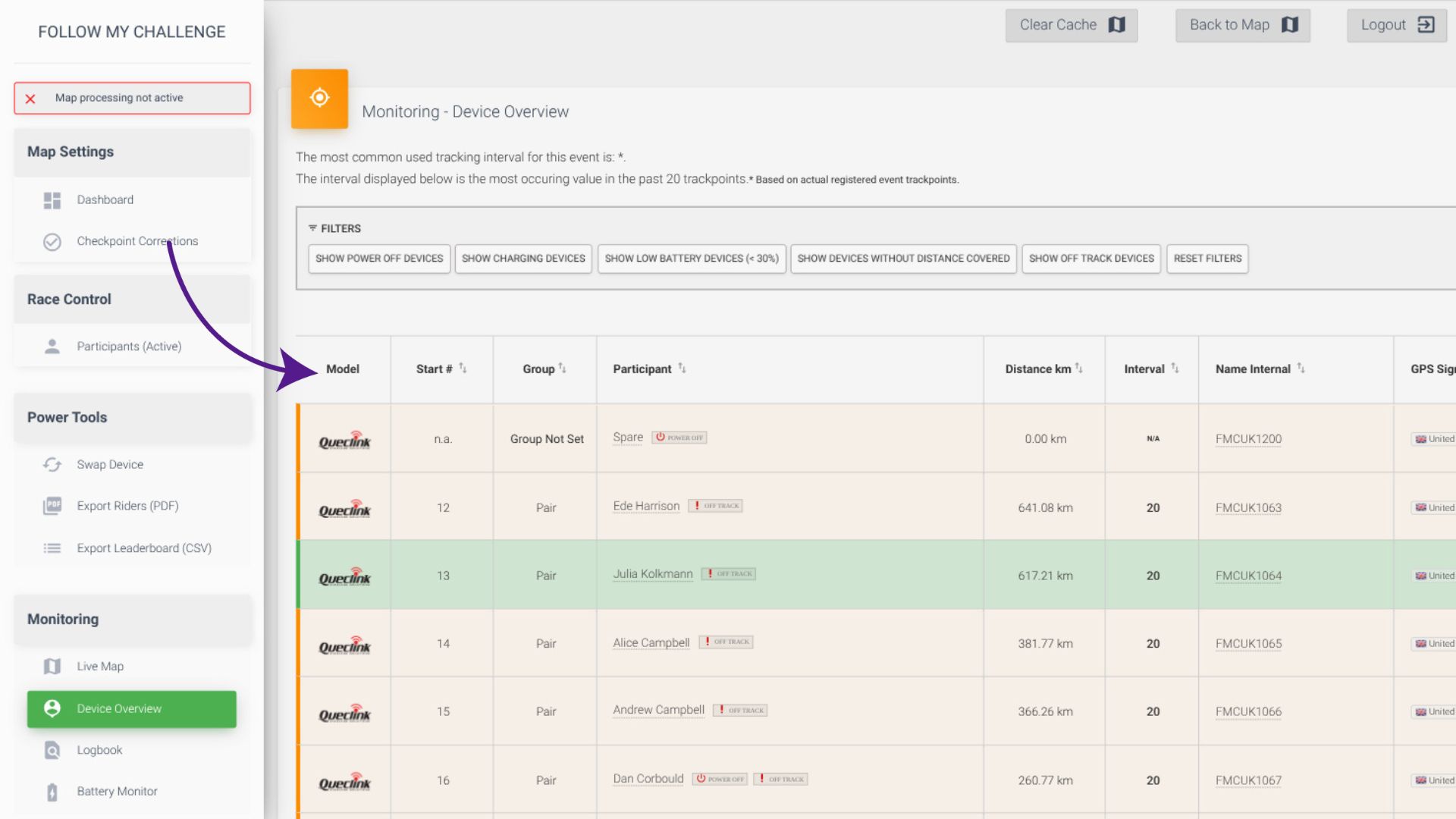
Column Headers
The column headers in the Device Overview table are sortable on click. To reverse the order, just click that header again. The columns shown include:
- Model – where you have a mix of tracker types or models, this allows you to distinguish them
- Start # – this shows the start number assigned to that participant
- Group – if your map has groups/categories, this shows the group that participant is currently in
- Participant – this shows the participant name loaded. A number of status or warning tags displayed here too e.g. “Power Off”
- Distance – this displays the distance covered since the start, based on either the assigned route or estimated distance
- Interval – this is the interval recorded by the map (not necessarily set on the tracker) based on the last 20 points transmitted
- Name Internal – this is the tracker ID, which corresponds with the label on the device for FMC devices
- GPS Signal – the quality of the GPS fix from the last transmitted point
- Battery – the battery level last transmitted by the tracker
- Last Report – when the tracker last transmitted a point (click the location icon to see this point)
SIM Reset
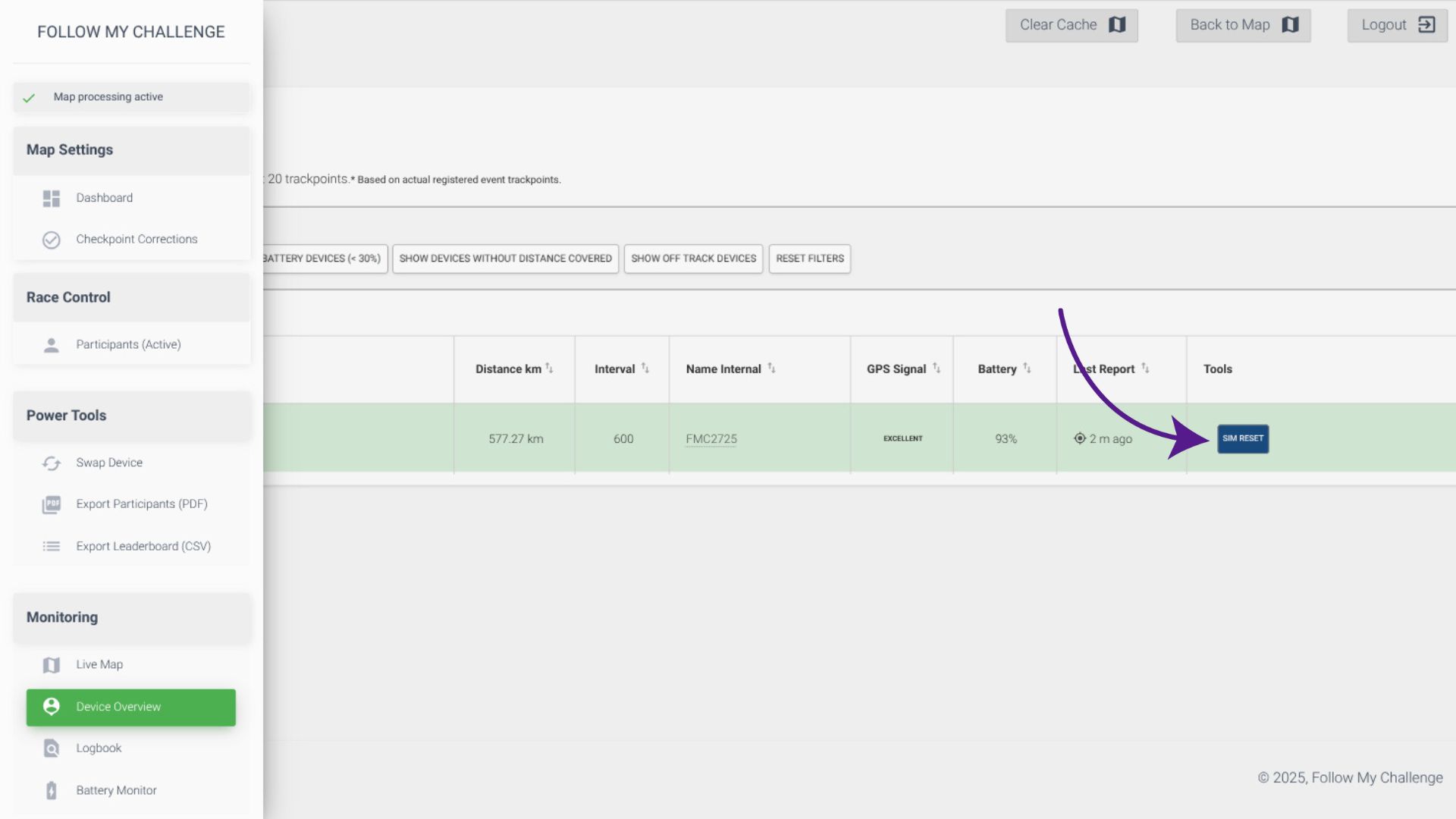
For Queclink trackers, the final “Tools” column will typically display a SIM reset button. Clicking this effectively forces a device to re-establish its network connection, hopefully clearing any temporary issues that might be preventing it from attaching to the network. If you experience issues with a tracker not connecting or only connecting intermittently, it is recommended to try using this SIM reset function.
Click through to the Logbook
For a deeper dive into a device, click on the participant name or device name to open the logbook for that device.