
Routes loaded to the map can be accessed via the “Routes” tab. Please note that routes need to be processed in the background, so you may have to wait a few minutes after initially configuring a map before you can make any changes.
The route assigned as the “main track” is the one that participants should be following and this will dictate off-track alerts. To change this, simply select an alternative route from those listed.
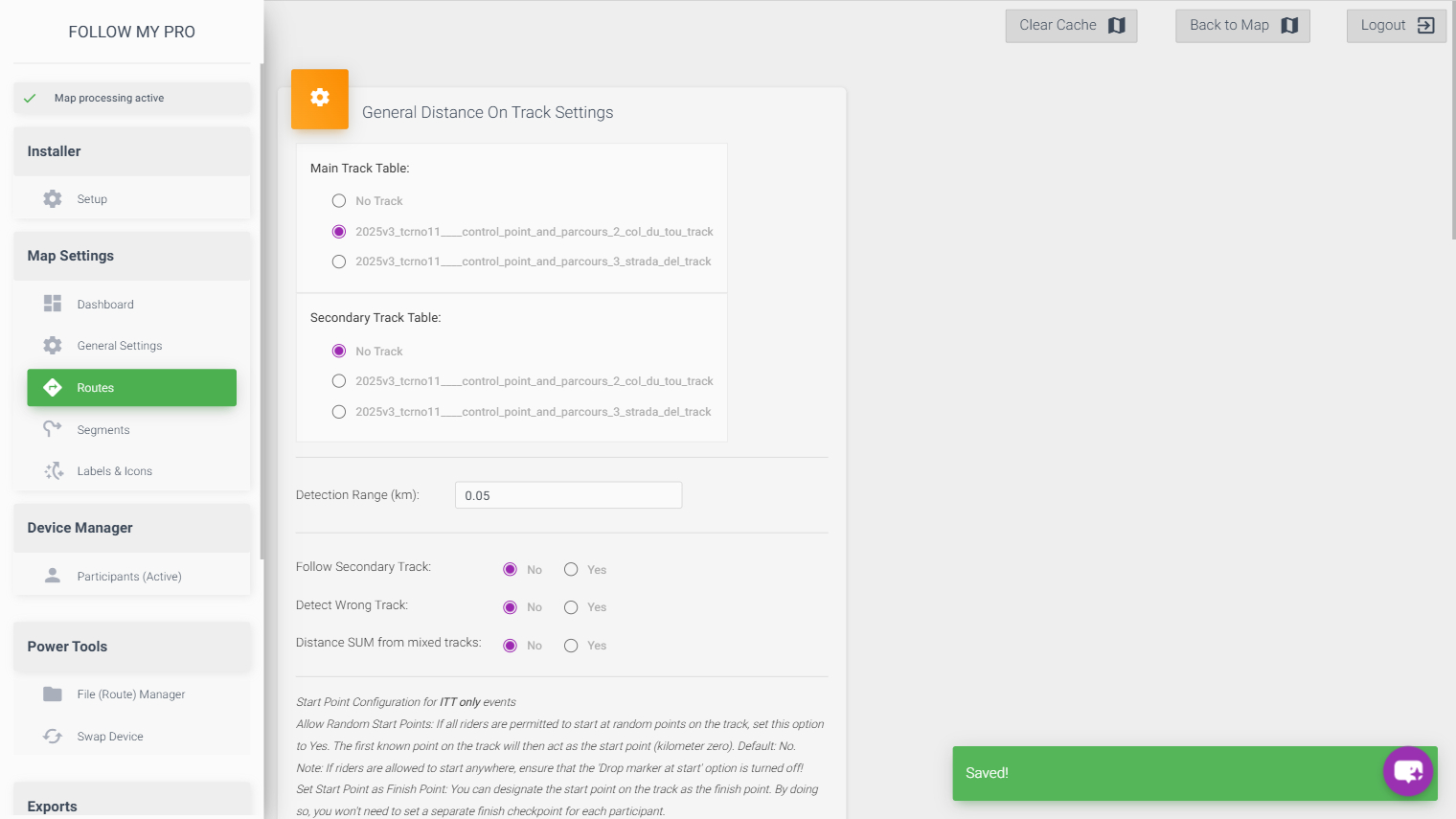
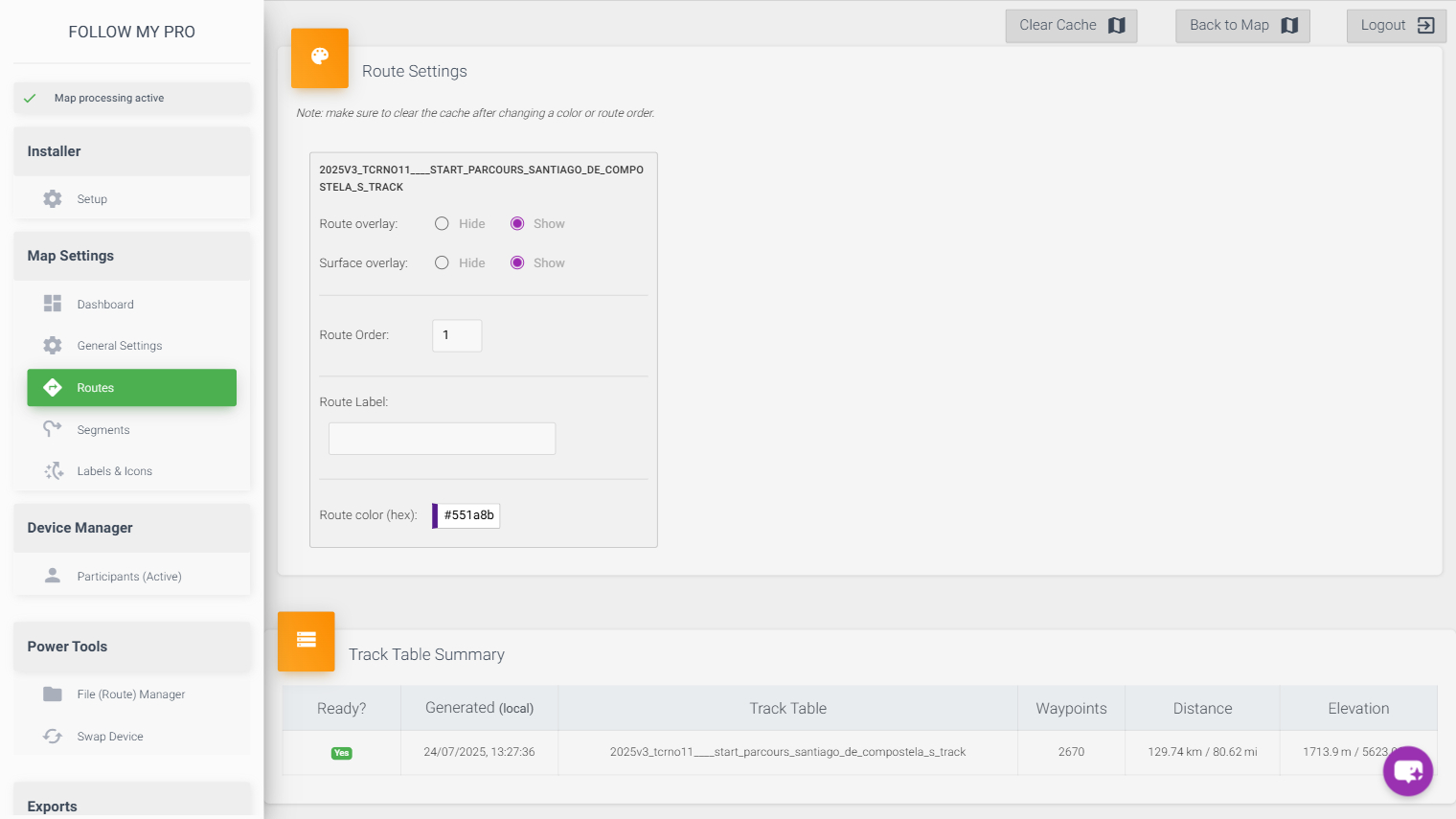
Route Settings
Scrolling down, you can see the display settings for the routes. Here, you can change labels and colours, as well as hiding routes.
Upload a new route
To upload a new route, go to the File Manager. Navigate to the “gpx_routes” folder.
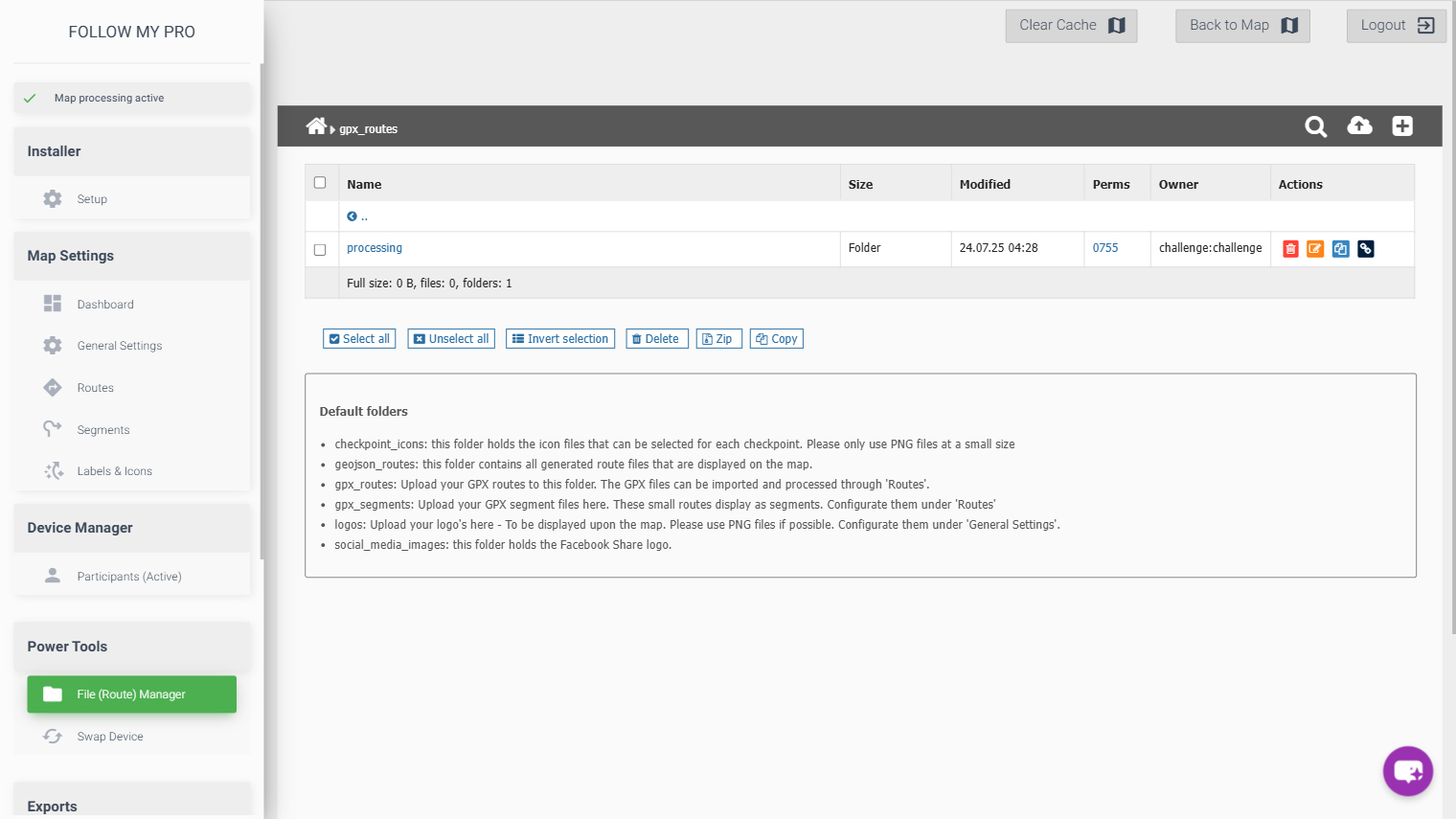
Then click the upload icon in the top right and a file upload screen will appear. Select the GPX file(s) you want to add and click to upload.
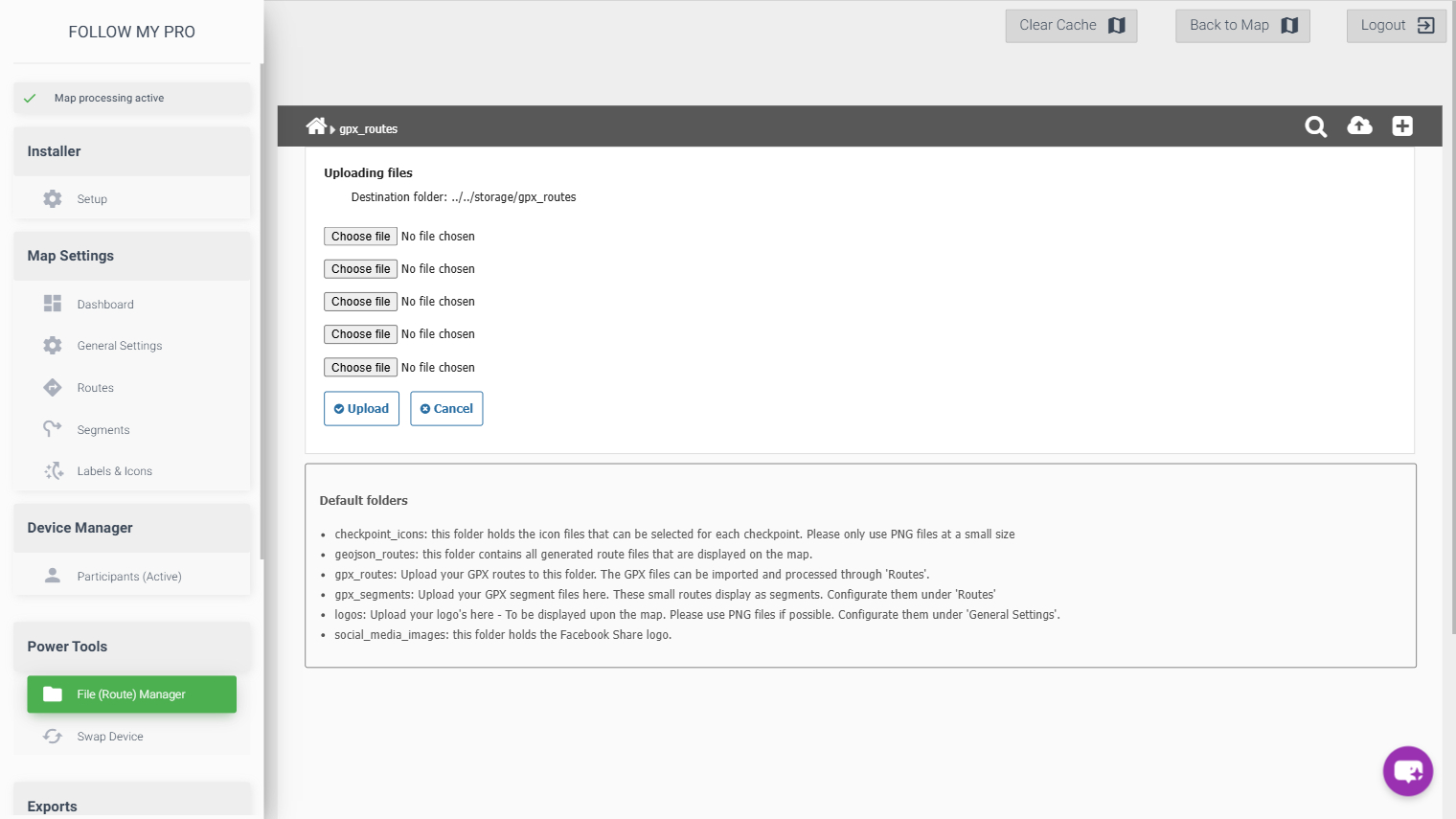
The GPX files will then be processed and appear in the Routes tab. Please bear in mind that files can take a few minutes to process.